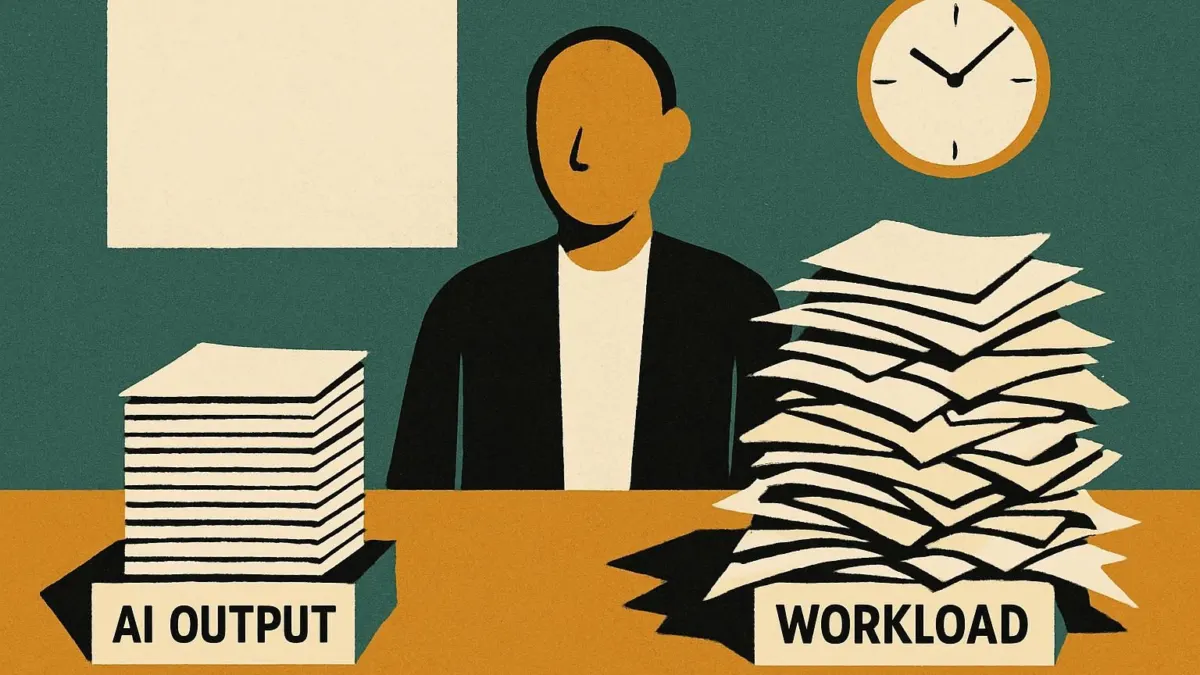
Ever finish a meeting and wonder, “Did I actually move anything forward, or just create more busywork?” You’re not alone. Many workers receive low-value output that clutters workflows and drains energy. If you want to learn how to use AI at work to reclaim time without flooding your team with more noise, you’re in the right place. This article gives you practical AI productivity tips, real-world templates, and quality controls so AI becomes your ally, not your shortcut to low-value work.
Key takeaways
- Many workers deal with low-value output that doesn’t move work forward.
- Choosing the right AI tools for work can save you hours weekly without lowering quality.
- Prompt templates and verification steps are essential for avoiding errors and low-value output.
- Integrating AI for summaries, drafting, and routine tasks frees you for higher-value work.
How can you use AI at work to actually save time?
To use AI at work and truly save time, start by matching the right tool to each task, then add prompt templates and verification steps to prevent low-value output. For knowledge workers, AI can handle repetitive drafting, meeting summaries, and initial research, freeing you up for deep work and client-facing tasks.
How to use AI at work means more than plugging text into a chatbot and hitting copy-paste. It’s about identifying which tasks AI handles well, like summarizing meetings, drafting routine emails, or compiling data, and then building a workflow that boosts productivity without sacrificing quality. According to Gallup, 46% of US employees now use AI at least occasionally, and 26% use it frequently in their day-to-day work (Gallup).
| Task Type | AI Strength | Human Value Add |
|---|---|---|
| Meeting summaries | Speed, accuracy | Context, next steps |
| Routine emails | Drafting, tone check | Personalization, judgment |
| Research aggregation | Compilation, first draft | Verification, insight |
Which AI productivity tips really work?
The best AI productivity tips are: batch similar tasks, use clear prompt templates, always verify AI output, and automate only what won’t risk quality. These steps prevent low-value output and create real time savings.
For example, instead of prompting an AI tool anew each time, create prompt templates for common tasks, like summarizing a meeting or drafting an agenda. Batch your requests: set aside 20 minutes to run all your routine work through AI, then move to review mode. Always check for factual errors or tone mismatches before sharing output.
- Create a list of repeatable weekly tasks, prioritize those with low stakes for AI handoff.
- Build a library of prompt templates for each task (see table below).
- Schedule one or two verification passes after AI use, not during.
- Document common errors or misinterpretations from your AI tools for faster correction next time.
- Share your best templates and review checklists with your team for consistency.
| Task | Prompt Template Example |
|---|---|
| Meeting summary | “Summarize the following transcript in 5 bullet points. Highlight decisions and action items.” |
| Email draft | “Write a professional reply to this message, confirming receipt and next steps.” |
| First-draft research | “Extract top 3 insights from these articles about [Topic], with sources.” |
What are the best AI tools for work and when should you use them?
The best AI tools for work are the ones that fit your specific workflow and offer reliable quality. Popular options include ChatGPT for drafting and brainstorming, Otter.ai or Microsoft Teams for meeting transcription, and Zapier for automating routine tasks.
Choosing a tool isn’t about trend-chasing. For example, ChatGPT is great for drafting emails or creating prompt-based outputs, but not for confidential information. Meeting summary tools work well if your team spends hours in calls but needs concise takeaways. For basic data entry or report compilation, spreadsheet AIs or workflow automation tools fit best. According to research, organizations will average seven different AI tools in daily use by 2025 (Zylo).
- For meeting-heavy roles: Use AI transcription and summarization tools to cut note-taking time.
- For customer service: Use AI chat assistants to handle first-line queries, then escalate.
- For project management: Use AI to draft progress updates or compile reports from raw data.
- For content teams: Use prompt templates for drafts, then apply human editing for nuance.
How do you avoid low-value output and maintain quality with AI?
To avoid low-value output, always add a verification step after AI output and use quality control checklists. Low-value output is generic work that creates more work than it saves.
Every AI-assisted task needs a human checkpoint. For example, after generating a meeting summary, spend two minutes verifying key decisions and next steps are clear and accurate. For client emails, check tone and specifics. Create a checklist: Is this output actionable? Is it factually correct? Does it match our standards?
“AI is a multiplier of both quality and error. You get out what you put in and check.”
- Draft with AI using a clear prompt template.
- Review for accuracy, relevance and tone.
- Flag any generic or incorrect content, replace or rewrite.
- Ask a colleague for feedback on high-stakes outputs.
- Store and refine your best prompt templates and checklists over time.
How can using ChatGPT at work go beyond basic writing?
Using ChatGPT at work is more than just drafting emails. Try using it for brainstorming, scenario planning, or initial project research, but always add verification and your own context.
For example, you can use ChatGPT to generate three ways to solve a recurring team bottleneck, or to synthesize conflicting feedback into a draft proposal. Use it to script client call introductions, suggest agenda items, or even create training outlines. The key is to treat ChatGPT as a creative partner, not a finished-product generator.
- Brainstorm solutions to stuck projects by prompting for alternatives.
- Have it role-play a difficult customer conversation to prepare responses.
- Use it to draft survey questions or interview guides, then adapt for your needs.
- Ask it to highlight gaps or risks in a project plan, then verify with your expertise.
What are practical steps to build AI into your workflow?
Building AI into your workflow takes five steps: audit your tasks, select the right tools, create prompt templates, set verification points, and measure time saved each week.
- List your top 12 weekly tasks. Mark which are repetitive or can be templated.
- Match each with an AI tool that fits: drafting, summarizing, automating.
- Create or adapt prompt templates for each AI-eligible task.
- Add a verification step, checklists or peer review, for each output.
- Track your time saved and quality maintained for two weeks, and adjust as needed.
Example: Sarah, a project manager, spends several hours a week on meeting notes and follow-up emails. By using an AI summarizer and prompt-driven email drafts, plus a daily review block, she saves significant time each week, without losing clarity or accuracy.
How do you measure the impact of AI on your productivity?
Measure the impact of AI by tracking both hours saved and output quality. Set a baseline for how long tasks take before AI, then compare weekly results post-AI adoption. Watch for any increase in low-value output or error rates as a signal to adjust your workflow.
| Metric | Before AI | After AI |
|---|---|---|
| Hours spent on admin | 6 | 2 |
| Meeting notes accuracy | Fair | High |
| Rework required | Frequent | Rare |
Document both the time you reclaim and any errors or low-value output that slip through. If quality dips, refine your prompt or add a review step. If time saved plateaus, look for new tasks to automate or batch.
Where should you start next with AI at work?
Start by choosing one routine task you’d love to spend less time on this week, then run it through an AI tool using a strong prompt template and a quick review. Build from there. If you want to avoid low-value output, always pair AI with a human checkpoint. For more practical workflow ideas, check our Managing Yourself section or browse Topics A to Z for related guides.
Frequently asked questions
How can you use AI in your work?
You can use AI at work to automate repetitive tasks, such as meeting summaries, email drafting, and data aggregation. Identify which jobs are low-stakes or time-consuming, select an AI tool that fits, and always verify the output before sharing or using it for decision-making.
What are the top 3 most used AI tools for work?
The most used AI tools at work include ChatGPT for drafting and brainstorming, Otter.ai or Microsoft Teams for meeting transcription and summaries, and Zapier for automating simple workflows. Each fits a different set of routine office tasks and can save hours when paired with human review.
How to use AI safely in the workplace?
Use AI safely at work by never sharing confidential or sensitive information, always double-checking output for accuracy, and following your organization’s security policies. Limit AI use to tasks where errors are low-risk, and maintain a human review step before external sharing or decision-making.
How do I prevent AI from producing low-value output?
Prevent low-value output by building prompt templates that specify your requirements, always reviewing AI output for accuracy, and using a checklist before sharing. Avoid automating high-stakes or context-heavy tasks, and regularly refine your prompts and review process to keep output quality high.
What are the first steps to integrate AI into my workflow?
Start by auditing your weekly tasks and identifying repetitive, low-risk jobs for AI support. Choose one tool to try, create or adapt a prompt template, and measure your time saved and quality maintained after two weeks. Gradually expand to more tasks as you refine your workflow.